
Documentation Index
Fetch the complete documentation index at: https://crewai-devin-1778040886-fix-hitl-pre-review-silent-fallback.mintlify.app/llms.txt
Use this file to discover all available pages before exploring further.
Overview
Use the Google Calendar trigger to launch automations whenever calendar events change. Common use cases include briefing a team before a meeting, notifying stakeholders when a critical event is cancelled, or summarizing daily schedules.Enabling the Google Calendar Trigger
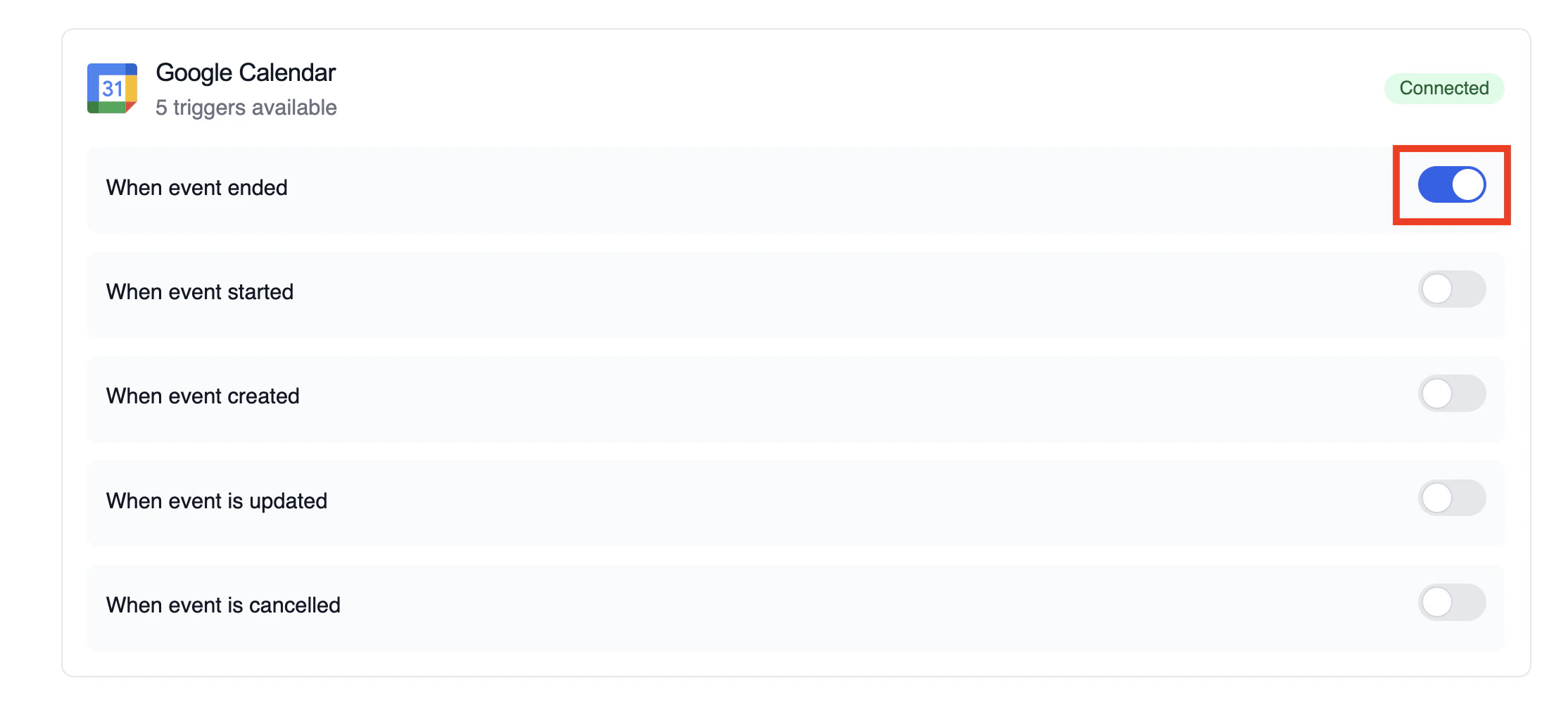
- Open your deployment in CrewAI AMP
- Go to the Triggers tab
- Locate Google Calendar and switch the toggle to enable
Example: Summarize meeting details
The snippet below mirrors thecalendar-event-crew.py example in the trigger repository. It parses the payload, analyses the attendees and timing, and produces a meeting brief for downstream tools.
crewai_trigger_payload exactly as it is delivered by the trigger so the crew can extract the proper fields.
Testing Locally
Test your Google Calendar trigger integration locally using the CrewAI CLI:crewai triggers run command will execute your crew with a complete Calendar payload, allowing you to test your parsing logic before deployment.
Monitoring Executions
The Executions list in the deployment dashboard tracks every triggered run and surfaces payload metadata, output summaries, and errors.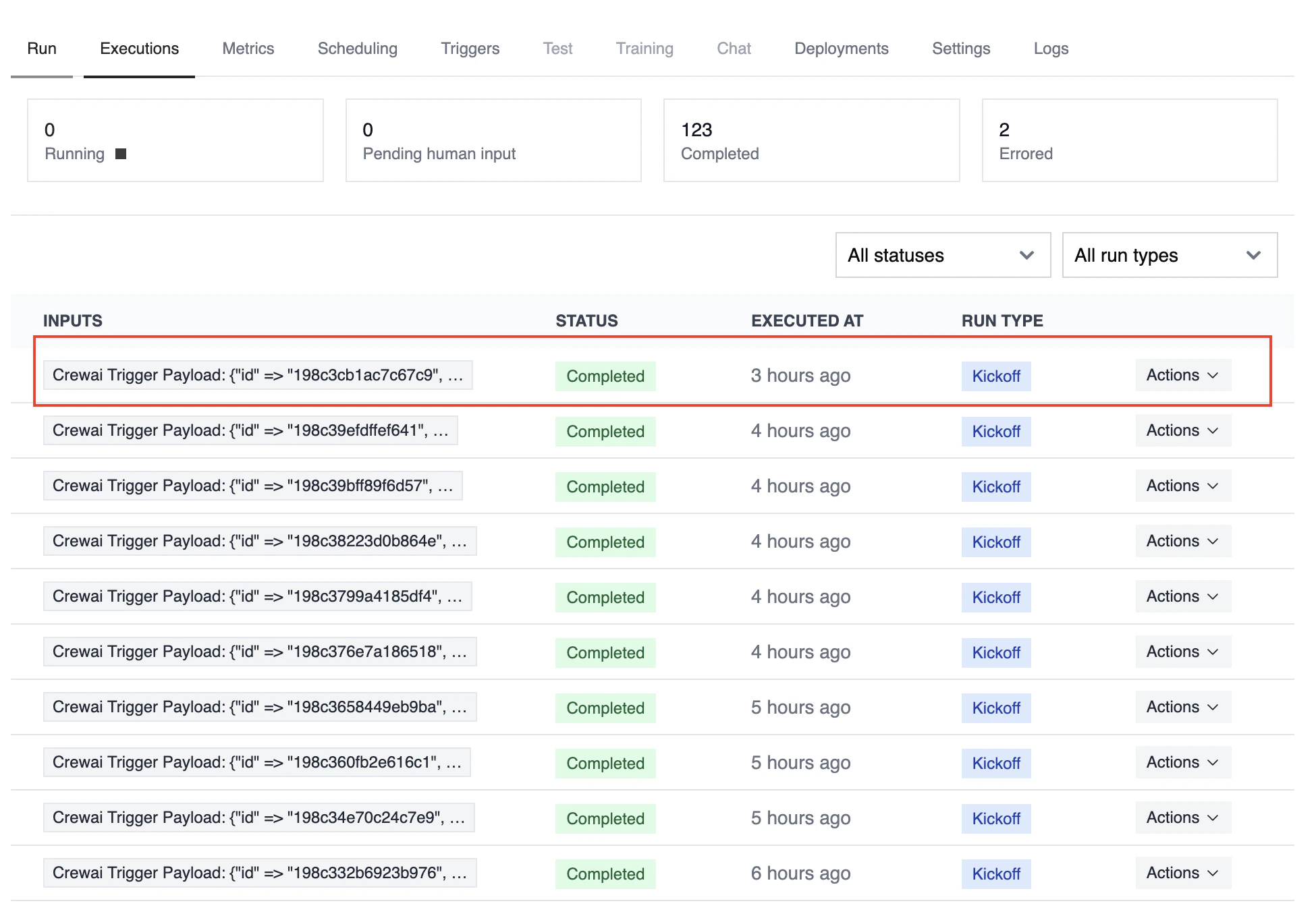
Troubleshooting
- Ensure the correct Google account is connected and the trigger is enabled
- Test locally with
crewai triggers run google_calendar/event_changedto see the exact payload structure - Confirm your workflow handles all-day events (payloads use
start.dateandend.dateinstead of timestamps) - Check execution logs if reminders or attendee arrays are missing—calendar permissions can limit fields in the payload
- Remember: use
crewai triggers run(notcrewai run) to simulate trigger execution